
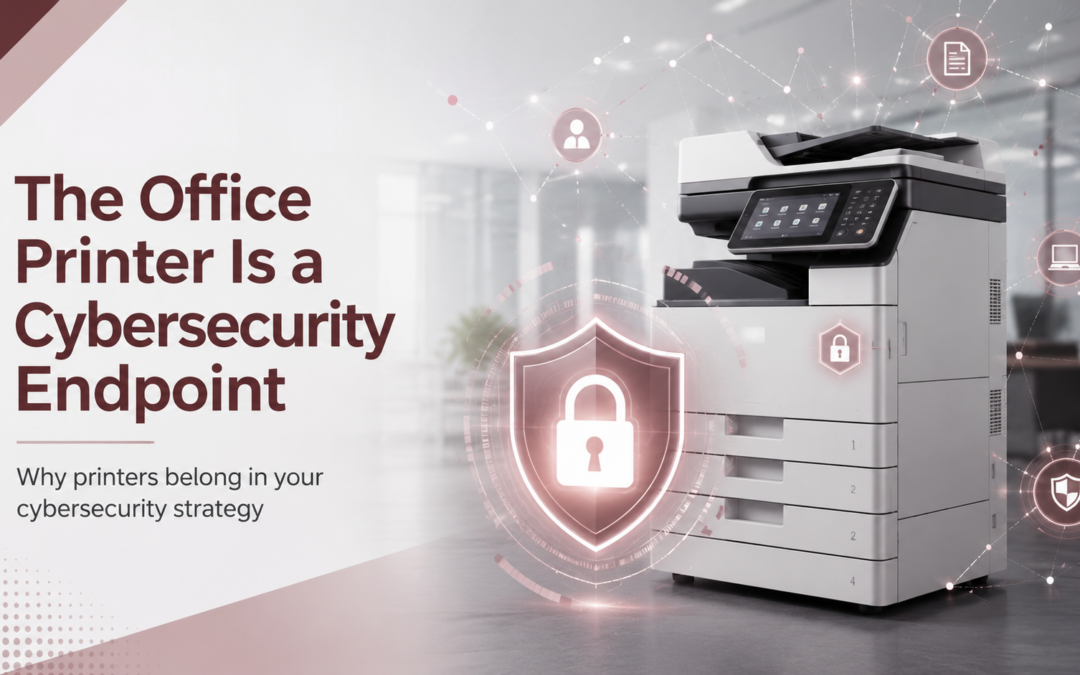
Most businesses protect laptops, servers, email accounts and cloud applications. However, one network-connected device is frequently left outside the cybersecurity conversation: the office printer.
Modern printers and multifunction copiers do much more than put ink or toner on paper. They may connect to your network, store documents, maintain address books, send email, access cloud platforms and communicate with business applications. In many cases, they also contain storage drives, operating systems, administrative accounts and web-based management portals.
For this reason, an office printer should be treated as a cybersecurity endpoint—not simply as a piece of office equipment. The National Institute of Standards and Technology specifically includes printers, copiers, scanners and multifunction devices in its guidance for managing the confidentiality, integrity and availability of information processed by “replication devices.” Therefore, printers should be included in the same security conversations as computers, servers, mobile devices and other network-connected technology.
What Makes an Office Printer a Cybersecurity Endpoint?
A cybersecurity endpoint is any device that connects to a network and exchanges information with other systems. Traditionally, businesses think of endpoints as desktops, laptops, phones and tablets. However, a networked printer meets many of the same criteria.
For example, a multifunction printer may:
- Receive documents from computers and mobile devices
- Store files temporarily on an internal drive
- Scan documents to email, network folders or cloud applications
- Maintain employee usernames, email addresses and authentication information
- Connect to Microsoft 365, document-management platforms or business applications
- Accept remote administration through a web interface
- Communicate with print servers and monitoring platforms
- Process contracts, financial information, employee records or customer data
As a result, an unsecured printer could expose information at several points in the document lifecycle. The risk is not limited to the paper sitting in the output tray. Instead, businesses must consider the data traveling to the printer, the information stored inside the device and the printer’s access to the wider business network.
Why Office Printer Cybersecurity Is Often Overlooked
Printers frequently remain in service longer than laptops and other IT equipment. Furthermore, responsibility for managing them may be divided among several departments. The IT team may manage the network. Meanwhile, an office manager may order toner, an equipment provider may handle repairs, and individual departments may control their own scanning workflows.
When no one clearly owns printer cybersecurity, important tasks can fall through the cracks. These tasks may include:
- Changing default administrator passwords
- Installing firmware and security updates
- Reviewing active network services
- Removing outdated employee accounts
- Monitoring printer activity
- Securing scan-to-email functions
- Erasing stored information before disposal
In addition, older printers may have been installed before the organization adopted its current cybersecurity policies. Consequently, the printer may never have been added to the company’s asset inventory, vulnerability-management program or incident-response plan.
7 Office Printer Cybersecurity Risks Businesses Should Address
1. Default or Weak Administrator Passwords
Many printers include a web-based administrative portal. Through this portal, an administrator may be able to change network settings, modify address books, review print activity or configure scanning destinations.
However, if the default password was never changed, an unauthorized individual may be able to access those settings.
This is more than a hypothetical concern. In a joint cybersecurity advisory, the NSA and CISA described how attackers who gained access to printers or scanners through default credentials could potentially use privileged domain credentials stored on those devices to move farther into a network. Therefore, default credentials should be changed during installation. Administrative access should also be limited to authorized personnel and protected with strong, unique passwords.
2. Outdated Firmware
Like computers and mobile devices, printers run software. This embedded software, known as firmware, controls device functions, network communications and security features. However, printers may not receive updates as consistently as laptops or servers. If a device has outdated firmware, known vulnerabilities may remain unaddressed.
Businesses should establish a process for:
- Checking manufacturer security notices
- Reviewing firmware versions
- Testing and installing approved updates
- Documenting when updates were completed
- Replacing devices that no longer receive manufacturer support
Additionally, firmware management should be coordinated between the equipment provider and the organization’s IT team.
3. Unnecessary Ports, Protocols and Services
Printers may support numerous communication methods, including web administration, wireless printing, FTP, faxing, cloud printing and several network-printing protocols. Nevertheless, most organizations do not use every available function.
Leaving unnecessary services enabled can increase the number of ways someone might attempt to access the device. Therefore, organizations should disable unused protocols, restrict remote administration and replace outdated communication methods with more secure alternatives whenever possible. Your IT provider should also review firewall rules to determine which systems genuinely need to communicate with the printer.
4. Broad Access to the Business Network
A printer should not automatically have unrestricted access to every server, workstation and application on the network. Instead, businesses should consider placing printers on a dedicated network segment or virtual local area network. Network segmentation helps limit which systems a printer can reach and which users can connect to it.
CISA has specifically recommended using VLANs to place printers in separate network segments as an additional security measure. As a result, if a device is compromised, segmentation may reduce the attacker’s ability to move laterally into more sensitive systems. For additional network-security recommendations, businesses can review DDL’s guide to improving network security for small and medium-sized businesses.
5. Sensitive Data Stored Inside the Printer
Many multifunction printers contain internal storage that may retain information from printing, copying, scanning or faxing activities.
For example, stored information could include:
- Contracts and legal documents
- Payroll or employee records
- Customer account information
- Financial reports
- Healthcare documents
- Scanned identification documents
- Email addresses and network-folder locations
Consequently, organizations should determine what information each printer stores and how that information is protected.
Security features may include disk encryption; automatic data overwrite and configurable retention policies. Toshiba, for example, describes print-security capabilities that include user authentication, secure print release, encryption, access controls and fleet administration. However, security features only provide protection when they are properly enabled and managed. Businesses should not assume every available setting was activated during installation.
6. Unclaimed Documents in Output Trays
Cybersecurity does not end when the printer produces the page. Sensitive documents may sit unattended in a hallway, reception area or shared workroom. Furthermore, an employee may accidentally collect another person’s documents or send a confidential file to the wrong device. Secure print release can reduce this risk.
Instead of printing immediately, the system holds the job until the authorized user enters a PIN, scans an identification card or uses another approved authentication method at the device. Toshiba notes that secure print release helps ensure a document is produced only when the authorized user is physically present. In addition, secure release may reduce waste because abandoned jobs can expire without being printed. Organizations that handle patient information should also review DDL’s HIPAA-compliant printing recommendations for additional physical, technical and administrative safeguards.
7. Improper Printer Disposal or Lease Return
The end of a printer’s useful life can create one final security risk. If the device contains a hard drive or other internal storage, simply deleting settings or performing a basic factory reset may not adequately remove every stored document. NIST’s current media-sanitization guidance emphasizes making risk-based sanitization decisions throughout a system’s lifecycle. It also notes that storage used to process personally identifiable information will often require sanitization before disposal.
Therefore, before selling, recycling, returning or replacing a printer, businesses should:
- Identify all internal storage components
- Follow manufacturer-approved sanitization procedures
- Remove or destroy storage when necessary
- Obtain written confirmation that data was erased
- Maintain disposal and sanitization records
These steps are especially important for healthcare, financial, legal, government and human-resources environments.
How to Secure Printers as Business Endpoints
Understanding the risks is an important first step. However, businesses also need a repeatable process for managing printer security.
Create a Complete Printer Inventory
First, document every printer, copier, scanner and multifunction device connected to the organization.
The inventory should include:
- Manufacturer and model
- Serial number
- Physical location
- IP address
- Firmware version
- Assigned administrator
- Department or business owner
- Lease or warranty expiration
- Available storage
- Supported security features
This inventory gives the IT team visibility into devices that might otherwise remain unmanaged.
Assign Clear Ownership
Next, determine who is responsible for each part of printer security. For example, the equipment provider may handle approved firmware updates and device maintenance. Meanwhile, the IT provider may manage network segmentation, firewall rules, administrator access and security monitoring. Although responsibilities can be shared, accountability should never be unclear.
Change Default Credentials
Every administrative password should be changed before the printer is placed into production. Moreover, businesses should avoid using the same password across multiple devices. Administrative access should be restricted to authorized users, and printer passwords should be stored in an approved password-management system.
Disable Unused Functions
Not every organization needs FTP, wireless direct printing, USB access, remote faxing or every available scan destination. Therefore, disable functions that are not required. Reducing unnecessary services helps reduce the overall attack surface.
Encrypt Stored and Transmitted Data
Where supported, enable encryption for information stored on the printer’s internal drive. Additionally, use encrypted protocols for data traveling between computers, print servers, cloud services and printers. Older unencrypted protocols should be disabled when secure alternatives are available.
Use Individual Authentication and Secure Print Release
Shared accounts make it difficult to determine who completed a particular print, scan or fax action. Instead, require individual authentication for sensitive workflows. Secure print release can provide an additional layer of protection by ensuring confidential documents are not produced until the authorized user arrives at the printer.
Review Scan-to-Email and Scan-to-Folder Workflows
Scanning can create risks that extend beyond the printer itself. For example, employees may scan documents to personal email addresses, incorrectly configured shared folders or cloud accounts without appropriate access controls.
For this reason, businesses should review:
- Approved scan destinations
- Email-server authentication
- Folder permissions
- Address-book access
- Cloud-storage connections
- Document-retention policies
- Audit logging
DDL’s document-management services can help businesses replace disconnected document processes with centralized storage, role-based permissions and more controlled workflows.
Monitor the Entire Print Fleet
A printer should not disappear from view after installation. Instead, organizations should regularly review device status, usage, configuration changes and lifecycle information. The Center for Internet Security even maintains security-configuration benchmarks for multifunction print devices, reflecting the need to apply formal security standards to this equipment category.
A structured Managed Print Services program can also improve visibility across printers, copiers, supplies, service needs and device usage. DDL’s program includes fleet monitoring, proactive maintenance, usage reporting and recommendations for improving the print environment.
Printer Security Requires Cooperation Between Print and IT
Printer cybersecurity sits at the intersection of office equipment, network security and document management. Therefore, organizations should avoid treating these areas as completely separate responsibilities.
A comprehensive approach may require:
- The equipment team to understand device capabilities and firmware
- The IT team to manage network access and endpoint security
- Department leaders to identify sensitive workflows
- Employees to follow secure printing and scanning procedures
- Management to create lifecycle and disposal policies
DDL Business Systems supports both office technology and business IT solutions, including network monitoring, endpoint protection, vulnerability assessments, backup and security guidance. As a result, businesses can evaluate the printer itself while also considering the network, users and workflows surrounding it.
Not Sure How Secure Your Printers Are?
Use our free 10-Point Office Printer Security Checklist to review firmware, passwords, administrator access, stored data, network settings and more.
Signs Your Print Environment Needs a Security Assessment
Your organization may need a printer-security review if:
- No one has a complete inventory of connected print devices
- Printers still use manufacturer-default credentials
- Firmware updates are not documented
- Old printers remain connected after manufacturer support ends
- Printers can communicate with most of the business network
- Sensitive documents regularly sit in output trays
- Employees share scanning or administrator accounts
- The organization does not know what data printers store
- There is no documented process for returning leased devices
- Printers are excluded from cybersecurity risk assessments
Even one of these warning signs can indicate that the print environment needs greater visibility and control.
Your Printer Should Be Part of Your Cybersecurity Strategy
Ultimately, office printers are no longer stand-alone appliances. They are intelligent, network-connected devices that process business information and interact with other systems. Therefore, they should be included in your asset inventory, access-control policies, firmware-management process, network-security strategy and equipment-retirement procedures.
By changing default credentials, updating firmware, limiting network access, encrypting information, using secure print release and sanitizing storage at the end of the device’s life, your business can reduce avoidable printer-security risks.
DDL Business Systems can help evaluate your printers, copiers, network connections and document workflows to identify potential security gaps. Through Managed Print Services, office-equipment solutions and cybersecurity services, DDL helps businesses create a more secure and manageable office-technology environment.
Schedule a free office technology and print-security assessment to find out whether your printers are being managed like the cybersecurity endpoints they have become.
Recent Comments