You place a contract in the office copier, press Scan, and a few seconds later, the document appears in your email inbox. Easy enough, right?
But have you ever wondered what happens to that document after you scan it? Where is it actually stored? Can someone else access it? And if you need to find it six months from now, will you know where to look? Most businesses have become pretty good at turning paper documents into digital files. The challenge is what happens next.
Scanning a document is only the first step. What happens after that can make the difference between an organized, efficient workflow and a digital filing system that’s just as frustrating as the paper one it replaced. Let’s look at where scanned documents go, what happens to the information they contain, and how businesses can manage those files more effectively.
Where Do Scanned Documents Go?
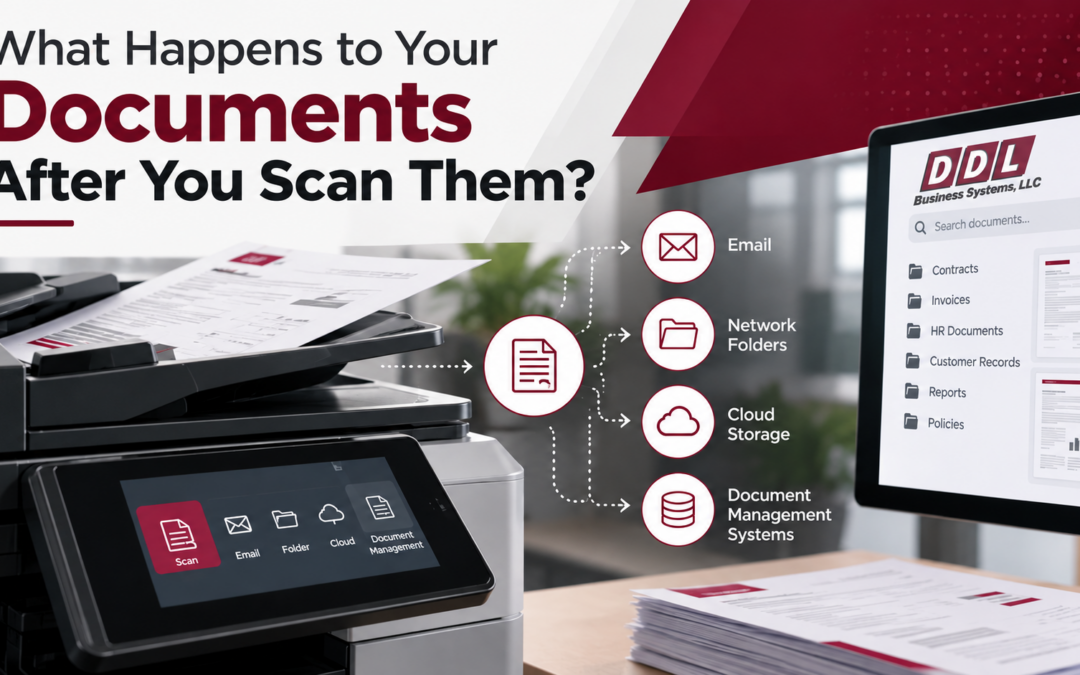
The answer depends on how your printer or scanner is configured. Modern multifunction printers (MFPs) can send scanned documents to several different destinations, including:
- Email: The scanned document arrives as an attachment in someone’s inbox.
- Network folders: The file is saved to a shared folder on your company’s server.
- Cloud storage: Documents can be sent to supported cloud platforms, such as Microsoft OneDrive or SharePoint, depending on your equipment and software.
- USB drives: Some printers allow employees to save scanned files directly to removable storage.
- Document management systems: Files can be routed into a centralized system where they are organized, indexed, and managed.
Each method serves a purpose. However, simply saving a file somewhere doesn’t necessarily make it easy to find, share, or protect.
Consider a typical office where employees scan documents to their individual email accounts. One employee saves invoices on their desktop. Another keeps contracts in Outlook folders. Someone else uploads documents to a shared drive. The documents are digital, but they’re still scattered throughout the organization. And that creates problems when someone needs information quickly.
What Happens After a Document Is Scanned?
Understanding the document scanning process can help you identify where your current workflow may be falling short.
1. Your scanner creates a digital file
When you scan a paper document, the scanner captures an electronic image of the page. Depending on your settings, the resulting file might be a PDF, JPEG, TIFF, or another supported format. For many businesses, PDF is the preferred choice because it allows multiple pages to be combined into one document and is widely supported.
However, there’s something important to understand: A scanned PDF isn’t necessarily a searchable document.
If your scanner simply captures an image, your computer may see the words on the page as part of a picture rather than actual text. That means you might be able to open and read the document, but you can’t search its contents for a customer name, invoice number, or particular phrase. Fortunately, there’s a technology that addresses this problem.
2. OCR can make your scanned documents searchable
Optical Character Recognition, commonly called OCR, is technology that recognizes printed text in scanned images and converts it into machine-readable text. For example, imagine scanning a 20-page contract. Without OCR, you may need to read through the entire document to find a particular clause. With OCR, you can search the document for words or phrases and locate the relevant information much faster.
OCR can also help organizations:
- Find information within scanned contracts and reports.
- Extract invoice numbers, dates, and other data.
- Reduce manual data entry.
- Make archived documents easier to retrieve.
- Support automated document processing workflows.
According to Adobe’s explanation of OCR technology, image-based scanned PDFs can be converted into searchable documents by adding a recognized text layer. However, OCR isn’t perfect. Poor scan quality, handwriting, unusual fonts, or damaged documents can affect accuracy. Important information should still be reviewed before it is used in business processes. Some modern multifunction printers and document management platforms offer OCR capabilities, although features vary by equipment, software, and licensing.
3. Your document needs to be stored and organized
Once a file has been scanned, it needs a place to live. This is where many organizations run into trouble. Think about the last time you searched for a document and couldn’t remember whether it was saved in your email, on your computer, or in a shared folder. Or perhaps you’ve encountered filenames like: Scan_20261028_143527.pdf
That filename doesn’t tell you much about what’s inside. A well-organized document management process can use consistent filenames, folders, searchable information, and document indexing. For example, instead of a generic scanned filename, an invoice might be saved as: 2026-10-28_ABC-Supplies_Invoice-1045.pdf
In a document management system, additional information such as the vendor, department, document type, or invoice date can also be associated with the file. This information, often called metadata, makes documents easier to organize and retrieve. The goal isn’t simply to store documents digitally. It’s to make sure the right information can be found when someone needs it.
4. Scanned documents can become part of an automated workflow
Here’s where document scanning can really start saving time. Imagine your accounting department receives a paper invoice. In a traditional process, an employee might scan the invoice, email it to a manager, wait for approval, and then manually enter the information into the accounting system. If the manager doesn’t respond, someone has to follow up.
Now consider a more structured workflow.
- The employee scans the invoice.
- A supported system uses OCR or document capture technology to identify relevant information.
- The invoice is routed to the appropriate person for review.
- The manager approves it electronically.
- The approved document is stored in the correct location, and information can be transferred to connected business software where supported.
Instead of relying on multiple emails and manual reminders, the process follows a defined path. This is the difference between simply scanning a document and actually improving the way information moves through your business. And invoices are just one example. Similar workflows can support employee onboarding, contract approvals, purchase orders, customer records, and other everyday business processes.
Are Scanned Documents Automatically Secure?
Not necessarily. A document doesn’t become secure simply because it’s no longer on paper. In fact, scanning can introduce new security considerations because the information may now be stored, transmitted, or shared electronically. Consider an employee who scans a confidential personnel document and accidentally selects the wrong email recipient. Or a shared network folder that allows more employees to access sensitive financial records than necessary.
The scanner may have performed its job correctly. The problem is how the information was handled afterward. The Federal Trade Commission’s guidance on business information security emphasizes protecting sensitive information throughout its lifecycle, including how it’s stored, transmitted, accessed, and eventually disposed of.
Five questions every business should ask about scanned documents
1. Who can access the documents? Sensitive information shouldn’t automatically be available to everyone in the organization. Access permissions should reflect employees’ responsibilities.
2. How are scanned files transmitted? Businesses should review how documents travel from scanners to email, network folders, and cloud platforms. Appropriate encryption and secure transfer methods can help protect sensitive information.
3. Are scanned documents backed up? Saving a document to a computer or shared folder doesn’t automatically guarantee that it can be recovered after accidental deletion, equipment failure, or a cyberattack.
4. Does the copier retain any scanned information? Depending on the device and its configuration, a multifunction printer may temporarily process or store document data. Businesses should understand the equipment’s storage, deletion, and security settings, especially before replacing or disposing of a device.
5. How long should documents be kept? Some business records must be retained for specific periods. Others should be securely deleted when they are no longer needed. Retention requirements vary by document type, industry, and applicable laws.
For healthcare organizations, additional safeguards may apply. The U.S. Department of Health and Human Services explains that the HIPAA Security Rule requires appropriate protections for electronic protected health information. A secure scanning process should fit into your organization’s broader information security and records management policies.
Scanning Documents vs. Managing Documents: What’s the Difference?
It’s easy to confuse document scanning with document management, but they aren’t the same thing. Document scanning turns a physical piece of paper into an electronic file. Document management addresses what happens to that file afterward, including how it’s organized, accessed, shared, protected, retained, and retrieved.
For example, a business might scan hundreds of documents every month but still struggle with:
- Employees saving files in different locations.
- Duplicate versions of contracts and reports.
- Difficulty finding old invoices.
- Confidential documents shared with the wrong people.
- Manual approvals that delay everyday work.
- Missing records when employees leave the organization.
These aren’t necessarily scanner problems. They’re document workflow problems. A more organized approach can reduce these frustrations by giving employees a consistent process for handling information.
How Can Your Business Improve Its Document Scanning Process?
You don’t necessarily need to replace your office copier or invest in an entirely new software system to improve document workflows. Start by understanding how your current process works.
- Review where your scanned documents are going: Identify the destinations employees use most often. Are files being sent to email, shared folders, cloud storage, or multiple locations? Look for situations where information becomes difficult to locate or is unnecessarily duplicated.
- Find out whether your equipment supports searchable PDFs: Your existing multifunction printer may already offer OCR or advanced scanning features that aren’t being fully used. Available functionality depends on the device and its configuration.
- Establish consistent document organization: Create practical naming conventions and folder structures that employees can follow. A consistent approach is often more useful than an elaborate filing system that nobody uses.
- Evaluate document security: Review user permissions, storage locations, backup procedures, and scanning settings. Pay particular attention to documents containing employee, customer, financial, legal, or patient information.
- Identify opportunities to automate repetitive tasks: Look at processes where employees repeatedly scan, email, rename, route, or manually enter information from documents. These are good places to explore whether document capture and workflow automation could reduce unnecessary steps.
How DDL Business Systems Can Help
At DDL Business Systems, we understand that most organizations don’t want more complicated technology. They want their existing technology to work better. Since 1997, we’ve helped businesses throughout Winchester, Northern Virginia, the Shenandoah Valley, Maryland, and West Virginia simplify their office technology. Our team can help organizations evaluate how they scan, print, store, and manage business documents.
Whether you’re using one multifunction printer or managing equipment across several departments, we can help identify opportunities to improve how information moves through your office. Through our Document Management Solutions and Managed Print Services, DDL can help your organization explore more efficient document workflows, evaluate appropriate scanning capabilities, and improve how business information is managed.
The goal isn’t simply to eliminate paper. It’s to make information easier to find, more practical to share, and better protected throughout its lifecycle.
Frequently Asked Questions About Scanned Documents
Does scanning a document automatically save it to the cloud?
No. A scanned document only goes to the destination configured on your scanner or multifunction printer. That may be an email address, local computer, network folder, cloud platform, or document management system. Cloud storage is not automatic unless the equipment or software is configured to use it.
Can someone else see documents I’ve scanned?
Possibly. Access depends on where the document is stored, who has permission to view it, and how it was shared. Businesses should review access settings for email, shared folders, and cloud storage, especially when handling confidential information.
Do office copiers save copies of scanned documents?
Some multifunction printers temporarily store scanned information or retain files, depending on the model and configuration. Others process scan jobs without retaining accessible document copies after completion. Check your equipment’s security and storage settings to understand how document data is handled.
Why can’t I search for words in my scanned PDF?
Your scanned PDF may contain only an image of the original page. OCR technology can recognize text in that image and make the document searchable. Some scanners offer this feature directly, while others require compatible software.
Can I throw away the original document after scanning it?
Not always. Some records must be retained in their original form or preserved for a specific period. Before disposing of paper originals, verify your organization’s records retention requirements, industry regulations, and the quality and completeness of the digital copies.
The Bottom Line: Scanning Is Just the Beginning
Scanning a document solves one problem: it turns paper into a digital file. But what happens next determines whether that file becomes a useful business resource or just another document that’s difficult to locate. The right combination of scanning technology, document organization, security controls, and workflow management can help your business spend less time searching for information and more time getting work done.
Not sure where your documents are going after they’re scanned? DDL Business Systems can help you evaluate your current document scanning process and identify opportunities to make it more efficient and secure.
Request a Free Document Workflow Assessment
Recent Comments