
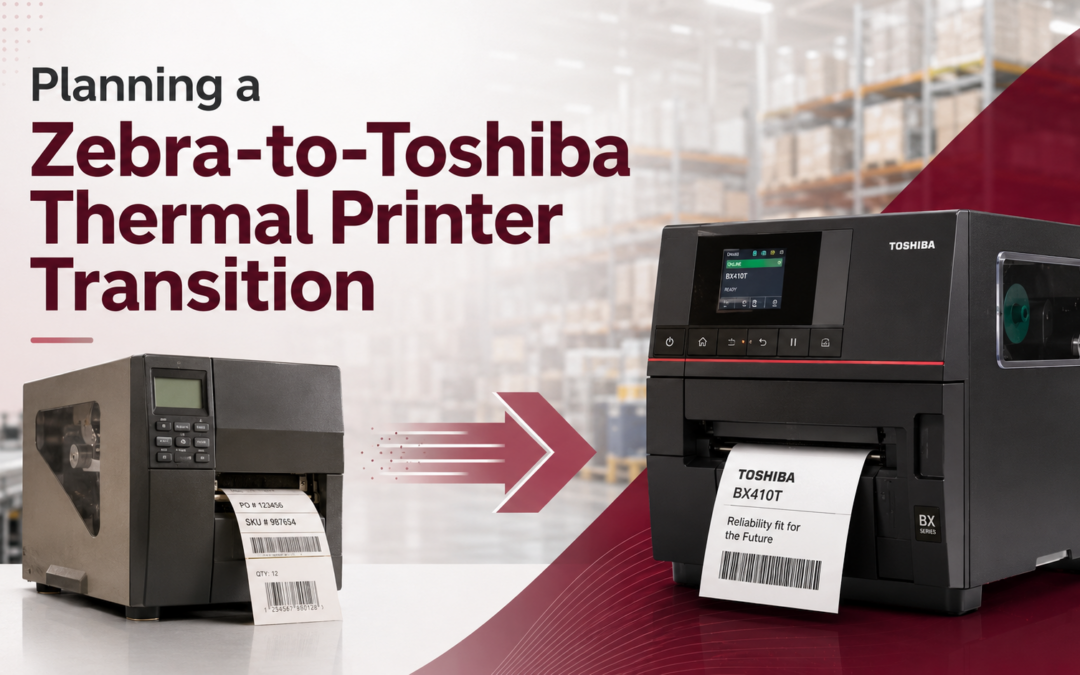
Many warehouses, manufacturers, distributors, retailers, and healthcare organizations rely on Zebra thermal printers for daily labeling. However, aging devices, service concerns, changing barcode requirements, and rising operating costs may lead businesses to consider an alternative. A Zebra-to-Toshiba thermal printer transition can provide an opportunity to modernize your labeling environment. Nevertheless, changing printer brands involves more than unplugging one device and installing another.
Your labels may depend on specific printer languages, resolution settings, fonts, drivers, software integrations, sensors, accessories, and media configurations. Therefore, every transition should begin with a detailed assessment. The good news is that Toshiba offers thermal printers with emulation capabilities designed to support existing printer languages, including Zebra Programming Language. Even so, compatibility should always be verified with your actual labels, software, and workflows before you purchase or deploy new equipment.
What Is Zebra Programming Language?
Zebra Programming Language, commonly called ZPL, is a printer language used to configure printers and control how labels are produced. ZPL commands can define text, barcodes, graphics, label dimensions, print orientation, darkness, speed, and other settings. For example, a warehouse management system may generate a ZPL file containing a shipping address, tracking number, barcode, and carrier information. The system then sends those instructions directly to the printer. As a result, the printer becomes part of a larger software workflow. Replacing the physical printer without examining that workflow could cause label formatting problems, missing graphics, barcode quality issues, or failed print jobs.
Can Toshiba Thermal Printers Process Existing Zebra Labels?
Certain Toshiba thermal printers include emulation auto-detection. For example, Toshiba lists emulation auto-detection as a feature of its BX410T and BX420T industrial printers. The BX410T is available in 203- and 305-dpi configurations, while the BX420T is available in 203- and 300-dpi configurations. In addition, Toshiba states that its newer BX420 Series and BX430 printers can automatically detect ZPL II, TPCL, and DPL print languages. Toshiba also offers native PDF processing on these models for workflows that send PDF-based label files directly from business applications.
Consequently, Toshiba’s emulation capabilities may allow many organizations to preserve existing ZPL-based workflows while replacing aging equipment. However, emulation does not mean that every label, command, font, accessory, software integration, or Zebra printer configuration will behave identically. ZPL includes an extensive range of commands, while individual printing environments may also contain custom scripts, stored graphics, downloaded fonts, RFID commands, printer-status requests, or resolution-specific positioning.
Therefore, DDL should test your existing label files and software before recommending a replacement printer.
1. Audit Your Current Zebra Printer Fleet
First, create a complete inventory of your existing thermal printers. Do not limit the audit to model numbers. Instead, document how each device supports your operation.
Record the following information:
- Zebra printer model and serial number
- Printer location and assigned department
- Direct thermal or thermal transfer printing
- Print resolution, such as 203, 300, 305, or 600 dpi
- Maximum label width
- Average and peak label volume
- Connection method, including Ethernet, USB, serial, Wi-Fi, or Bluetooth
- Installed options, such as cutters, peelers, rewinders, applicators, or RFID
- Media size and sensor type
- Ribbon formulation and dimensions
- Current printer language
- Common service problems
- Age and expected replacement date
This audit helps identify which devices can be replaced with a standard model and which applications require specialized equipment. For instance, a basic 4-inch shipping label may have very different requirements from a small electronics label, a chemical drum label, an RFID tag, or a wide pallet label.
2. Document How Print Jobs Reach the Printer
Next, trace the full path of a label from the business application to the physical printer.
Your labels may originate from:
- An ERP system
- A warehouse management system
- Shipping software
- BarTender or another label-design platform
- A healthcare or laboratory application
- A custom manufacturing system
- A cloud-based application
- A direct ZPL output
- A Windows print driver
- A PDF-based workflow
This step is critical because two Zebra printers may appear identical while receiving print jobs in completely different ways. For example, one application may send raw ZPL directly to a printer’s IP address. Meanwhile, another application may use a Windows driver to create printer commands. A third system may store printer-specific settings inside individual label templates. Therefore, your migration team should document the software, driver, queue, port, network address, template, and print language associated with each workflow.
3. Match the Toshiba Printer to the Application
After documenting the current environment, compare each application with the appropriate Toshiba printer specifications.
Important requirements include:
- Print method: Determine whether the application uses direct thermal or thermal transfer printing. Direct thermal printers use heat-sensitive media and do not require a ribbon. In contrast, thermal transfer printers use a ribbon to transfer the printed image to the label.
- Print resolution: Resolution is especially important when labels contain small text, compact barcodes, detailed graphics, or limited space. For example, replacing a 300-dpi printer with a 203-dpi printer could change the size or positioning of label elements. Seagull Scientific notes that installing a driver with the wrong printer resolution can cause output to appear enlarged or reduced. Therefore, match the new printer’s resolution to the current application whenever possible. When a different resolution is necessary, the label templates should be reviewed and adjusted.
- Label width and volume: The printer must support both the label width and the organization’s production volume. Additionally, busy shipping or manufacturing environments should evaluate peak demand rather than relying only on average daily volume.
- Accessories: Finally, document any cutters, peel modules, rewinders, RFID encoders, label applicators, external keyboards, scanners, or industrial interfaces. These accessories may affect which model and configuration will work.
4. Build a Representative Label Test Library
Instead of testing only one simple label, create a library that represents the full range of your operations.
Include labels with:
- Small and large text
- Multiple fonts
- Company logos
- Rotated fields
- Serialized numbers
- Variable database fields
- Horizontal and vertical barcodes
- QR Codes or GS1 DataMatrix
- Long text fields
- International characters
- Reverse printing
- Boxes, lines, and shading
- Stored or downloaded graphics
- Multiple label sizes
- Cutter or peel instructions
- RFID encoding, when applicable
In addition, include labels from different departments, applications, customers, carriers, and production lines. A shipping label may print correctly while a smaller inventory label fails because of a font, resolution, margin, or barcode setting. Therefore, a representative test library provides a more realistic picture of compatibility.
5. Validate ZPL Emulation Carefully
Once the test library is ready, send the original Zebra-formatted files to the proposed Toshiba printer. Compare the Toshiba output with labels produced by the current Zebra device.
Specifically, examine:
- Text position
- Font appearance
- Barcode dimensions
- Barcode readability
- Graphic quality
- Label orientation
- Margins and offsets
- Darkness
- Print speed
- Tear-off position
- Cutter operation
- Peel behavior
- Serialization
- Data accuracy
Furthermore, test commands that interact with the printer rather than simply creating an image. These could include status requests, stored formats, downloaded objects, printer configuration commands, or application-control signals. Because printer emulation can involve differences between models and firmware versions, successful output from a few simple labels should not be treated as proof that the entire environment is compatible. Instead, document which labels pass, which labels require adjustments, and which workflows may need a different integration method.
6. Test Labels, Ribbons, and Printer Calibration
Hardware compatibility is only one part of the transition. Media and ribbon performance must also be evaluated. Test the actual labels and ribbons used in production.
Then, check:
- Print darkness
- Barcode edge definition
- Adhesion
- Smudging
- Scratching
- Ribbon wrinkling
- Label tracking
- Sensor detection
- Printhead pressure
- Label stopping position
In addition, calibrate the printer for the correct media type. The sensor may need to detect a gap, black mark, notch, or continuous material. Seagull Scientific recommends confirming that a printer consistently feeds one label to the correct position. It also recommends verifying the printer language, resolution, sensor type, print method, speed, and darkness when diagnosing thermal printing problems. Therefore, do not assume that media settings from the Zebra printer should be copied directly to the Toshiba printer. Start with validated settings for the new device and adjust them gradually.
7. Review Drivers, Ports, Networks, and Software Settings
Next, determine whether the Toshiba printer will use emulation, a Toshiba driver, a Seagull driver, native PDF printing, or another integration method.
Depending on the application, the transition may require updates to:
- Windows printer queues
- Print server drivers
- Static IP addresses
- RAW or LPR ports
- ERP printer definitions
- Warehouse management system settings
- Label-design software
- Firewall rules
- Device-monitoring software
- Mobile device configurations
- Printer names embedded in scripts
- Automated print integrations
Additionally, make sure the printer driver matches the selected printer language and resolution. Seagull Scientific warns that an incorrect printer language can cause errors or unresponsive behavior, while an incorrect DPI setting can change the printed label’s scale. As a result, every updated queue should be tested from both the operating system and the actual business application.
8. Start With a Controlled Pilot
Before replacing an entire fleet, install one Toshiba printer in a carefully selected pilot location.
The ideal pilot area should have:
- A manageable number of users
- Representative label types
- Moderate print volume
- An experienced supervisor
- Access to IT support
- A temporary fallback printer
During the pilot, track print failures, user questions, media changes, application errors, barcode scans, and production delays. At the same time, compare operating procedures. For example, employees may need to learn a different method for loading labels, changing ribbons, clearing jams, adjusting media guides, or responding to error messages. A controlled pilot reduces risk because problems can be corrected before they affect multiple departments or facilities.
9. Complete the Transition in Phases
After the pilot succeeds, create a phased deployment schedule.
You might transition printers by:
- Department
- Production line
- Facility
- Application
- Printer age
- Business priority
- Service history
Keep the current Zebra printer available temporarily when a workflow is especially critical. However, establish a clear cutover date so employees do not continue sending jobs to the wrong device. Toshiba also recommends using staged rollouts to convert templates, validate output, and phase new labels into production. Consequently, a phased approach can help maintain daily operations while giving your team time to address unexpected issues.
10. Prepare for 2D Barcode Requirements
A printer transition is also an opportunity to evaluate whether your labeling environment can support current and future 2D barcode initiatives. GS1’s retail industry goal is for point-of-sale systems to be capable of reading and processing defined 2D barcodes using GS1 standards by the end of 2027, while continuing to support traditional linear barcodes.
Although this initiative focuses heavily on retail point-of-sale scanning, it may also affect manufacturers, distributors, packaging operations, and suppliers that create product labels. Therefore, your testing should include the 2D barcode formats your customers or trading partners may require. These could include QR Codes powered by GS1, GS1 DataMatrix, lot numbers, expiration dates, serial numbers, or digital product information.
Most importantly, verify that each barcode contains the correct data and scans successfully. A barcode that looks sharp to the human eye may still fail verification because of size, contrast, quiet zones, print growth, or data-formatting problems.
Common Zebra-to-Toshiba Transition Mistakes
- Assuming emulation guarantees identical output: Emulation can simplify a migration. However, it should be considered a compatibility tool rather than a guarantee that every Zebra model, command, or application will behave identically.
- Matching printers by appearance alone: Two 4-inch industrial printers may have different resolutions, sensors, interfaces, duty cycles, printhead technologies, and accessory support.
- Testing only one label: A basic shipping label cannot represent an entire labeling environment. Instead, test labels from every critical workflow.
- Ignoring stored fonts and graphics: Some Zebra environments store fonts, logos, formats, or graphics inside the printer. Therefore, these resources may need to be transferred, replaced, embedded, or recreated.
- Reusing settings without calibration: Print speed, darkness, sensor position, and label offsets may need to be adjusted for the Toshiba printer, label stock, and ribbon combination.
- Replacing every printer at once: A fleet-wide cutover increases risk. In contrast, a pilot and phased rollout make it easier to identify and resolve problems.
Zebra-to-Toshiba Migration Checklist
Before approving the transition, confirm that you have:
- Documented every Zebra printer and application
- Identified the current printer language
- Recorded printer resolution and label dimensions
- Verified direct thermal or thermal transfer requirements
- Documented cutters, peelers, RFID, and other accessories
- Created a representative label test library
- Tested existing ZPL files on the proposed Toshiba model
- Verified fonts, graphics, barcodes, and variable data
- Tested actual labels and ribbons
- Calibrated the printer for the correct sensor and media type
- Verified drivers, queues, ports, and IP addresses
- Tested output from the actual business application
- Completed barcode scanning or verification
- Trained operators and you have:
- Documented every Zebra printer and application
- Identified support personnel
- Created a rollback plan
- Completed a controlled pilot
- Documented approved printer settings
- Scheduled a phased rollout
How DDL Can Help with Your Thermal Printer Transition
A successful Zebra-to-Toshiba transition begins with understanding how your labels are created, transmitted, printed, and used. DDL Business Systems can evaluate your current printer fleet, label formats, media, software, print volumes, accessories, and workflow requirements. Then, we can help identify an appropriate Toshiba configuration and develop a practical migration plan.
Our transition process can include:
- Current Zebra fleet assessment
- Toshiba model recommendations
- Existing label and ZPL testing
- Driver and software compatibility review
- Media and ribbon evaluation
- Printer configuration
- Pilot installation
- User training
- Phased deployment planning
- Ongoing service and supply support
Most importantly, DDL will not assume that every Zebra label or workflow is automatically compatible. Instead, we will verify your existing environment and identify any changes before you commit to a new fleet.
Plan Your Zebra-to-Toshiba Transition Before Equipment Fails
Waiting until an aging thermal printer stops working can turn a manageable upgrade into an urgent operational problem. By planning early, your organization can test compatibility, identify the right Toshiba equipment, prepare employees, and transition printers in controlled phases. Furthermore, you can use the migration to improve label consistency, support evolving 2D barcode requirements, and simplify long-term printer management.
Considering Toshiba as an alternative to your current Zebra thermal printers? Schedule a thermal printing assessment with DDL Business Systems. We will review your existing label formats, software, media, printer configurations, and workflow requirements before recommending a solution.
Can Toshiba printers print labels created for Zebra printers?
Some Toshiba thermal printers support ZPL emulation and emulation auto-detection. Therefore, many existing ZPL-based labels may work with limited changes. However, DDL should test your specific label files, fonts, graphics, commands, software, resolution, and accessories before confirming compatibility.
Will we need to rewrite all our ZPL labels?
Not necessarily. Emulation may allow existing ZPL files to continue working. Nevertheless, labels that use specialized commands, stored resources, unusual fonts, RFID, status requests, or resolution-specific positioning may require adjustments.
Can we use our existing labels and ribbons?
Possibly. Compatibility depends on the label dimensions, core size, roll diameter, winding direction, material, adhesive, ribbon width, ribbon formulation, and printer configuration. Consequently, your existing supplies should be tested with the proposed printer.
Which Toshiba printer replaces a Zebra printer?
There is no universal one-to-one replacement. The correct Toshiba model depends on print width, resolution, volume, environment, media, connectivity, software, accessories, and barcode requirements.
Should we replace every Zebra printer at once?
Usually, a controlled pilot followed by a phased rollout creates less risk. This approach allows your team to verify labels, workflows, supplies, and user procedures before expanding the deployment.
Can a printer transition help us prepare for Sunrise 2027?
Yes. A transition provides an opportunity to test QR Codes, GS1 DataMatrix, variable data, and other 2D barcode applications. However, readiness also depends on your label software, product data, scanners, business systems, and customer requirements—not only the printer.
Recent Comments